
How to Download macOS Sequoia DMG for Clean Install
This guide describes a step-by-step method to download macOS Sequoia DMG for a clean install or upgrade purposes. By following this guide, you'll be able to download macOS Sequoia DMG without a Developer Account and can further use it for installing on a real Mac or on a non-Apple computer.
Today, Apple announced its new macOS lineup i.e. macOS Sequoia 15.0. A copy of macOS Sequoia is currently available to developers who have enrolled in the Apple Developer Program.
Users who have not enrolled in Apple's Developer Program, cannot get the update directly onto their Mac system. However, as always, there is a workaround to it. The methods for downloading macOS Sequoia Preview without a Developer Account have been described below. All the methods discussed here are official installers directly from Apple Server and are not modified in any way.
If you do not have a Developer Account and still want to try our macOS Sequoia, you can download an official copy of macOS for a clean install or upgrade purposes. To download the macOS Sequoia DMG, follow the steps below.
STEP 1: Install Command Line Tools, if you haven't already.
STEP 2: Open the Terminal and execute the following commands:

STEP 3: When prompted for a password, enter your password. You'll get a list of available products for download.

STEP 4: Type
Once the download is completed, you'll see the following screen:
STEP 5: Quit Terminal. You'll find the macOS Sequoia Installer in a DMG file in

This guide describes a step-by-step method to download macOS Sequoia DMG for a clean install or upgrade purposes. By following this guide, you'll be able to download macOS Sequoia DMG without a Developer Account and can further use it for installing on a real Mac or on a non-Apple computer.
Today, Apple announced its new macOS lineup i.e. macOS Sequoia 15.0. A copy of macOS Sequoia is currently available to developers who have enrolled in the Apple Developer Program.
Users who have not enrolled in Apple's Developer Program, cannot get the update directly onto their Mac system. However, as always, there is a workaround to it. The methods for downloading macOS Sequoia Preview without a Developer Account have been described below. All the methods discussed here are official installers directly from Apple Server and are not modified in any way.
If you do not have a Developer Account and still want to try our macOS Sequoia, you can download an official copy of macOS for a clean install or upgrade purposes. To download the macOS Sequoia DMG, follow the steps below.
STEP 1: Install Command Line Tools, if you haven't already.
STEP 2: Open the Terminal and execute the following commands:
Bash:
#Clone macadmin scripts
git clone https://github.com/munki/macadmin-scripts

#Move to the directory
cd macadmin-scripts

#Run installinstallmacos.py
sudo ./installinstallmacos.py --catalogurl https://swscan.apple.com/content/catalogs/others/index-15seed-15-14-13-12-10.16-10.15-10.14-10.13-10.12-10.11-10.10-10.9-mountainlion-lion-snowleopard-leopard.merged-1.sucatalog.gz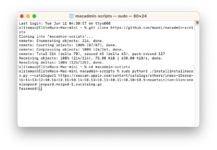
Starting from macOS Monterey 12.3, Apple removed support for Python 2.7 and if you continue to download macOS using the macadmin script, it will throw an error:
To overcome this issue, you'll need to follow the steps below:
1. Open the Terminal and execute the following commands. When prompted for the password, enter your password.
2. Continue with step #3.
This tool requires the Python xattr module. Perhaps run 'pip install xattr' to install it.To overcome this issue, you'll need to follow the steps below:
1. Open the Terminal and execute the following commands. When prompted for the password, enter your password.
Bash:
#Install Command Line Tools for Xcode
sudo xcode-select --install

#Install xattr module
pip3 install xattr

#Move to the directory
cd macadmin-scripts

#Run installinstallmacos.py
sudo python3 ./installinstallmacos.py --catalogurl https://swscan.apple.com/content/catalogs/others/index-15seed-15-14-13-12-10.16-10.15-10.14-10.13-10.12-10.11-10.10-10.9-mountainlion-lion-snowleopard-leopard.merged-1.sucatalog.gz
2. Continue with step #3.
STEP 3: When prompted for a password, enter your password. You'll get a list of available products for download.
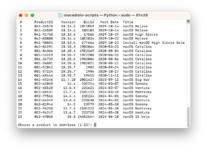
STEP 4: Type
23 which is for macOS 15.0 beta (24A5264n) and press enter key. The script will start downloading the files.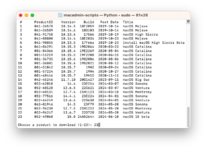
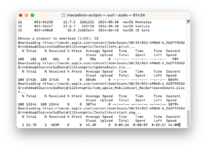
Once the download is completed, you'll see the following screen:
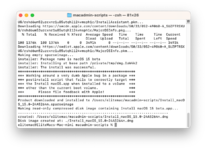
STEP 5: Quit Terminal. You'll find the macOS Sequoia Installer in a DMG file in
/Users/yourusername/macadmn-scripts directory.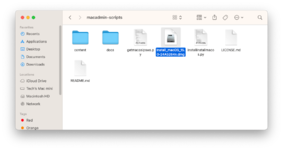
Last edited:


